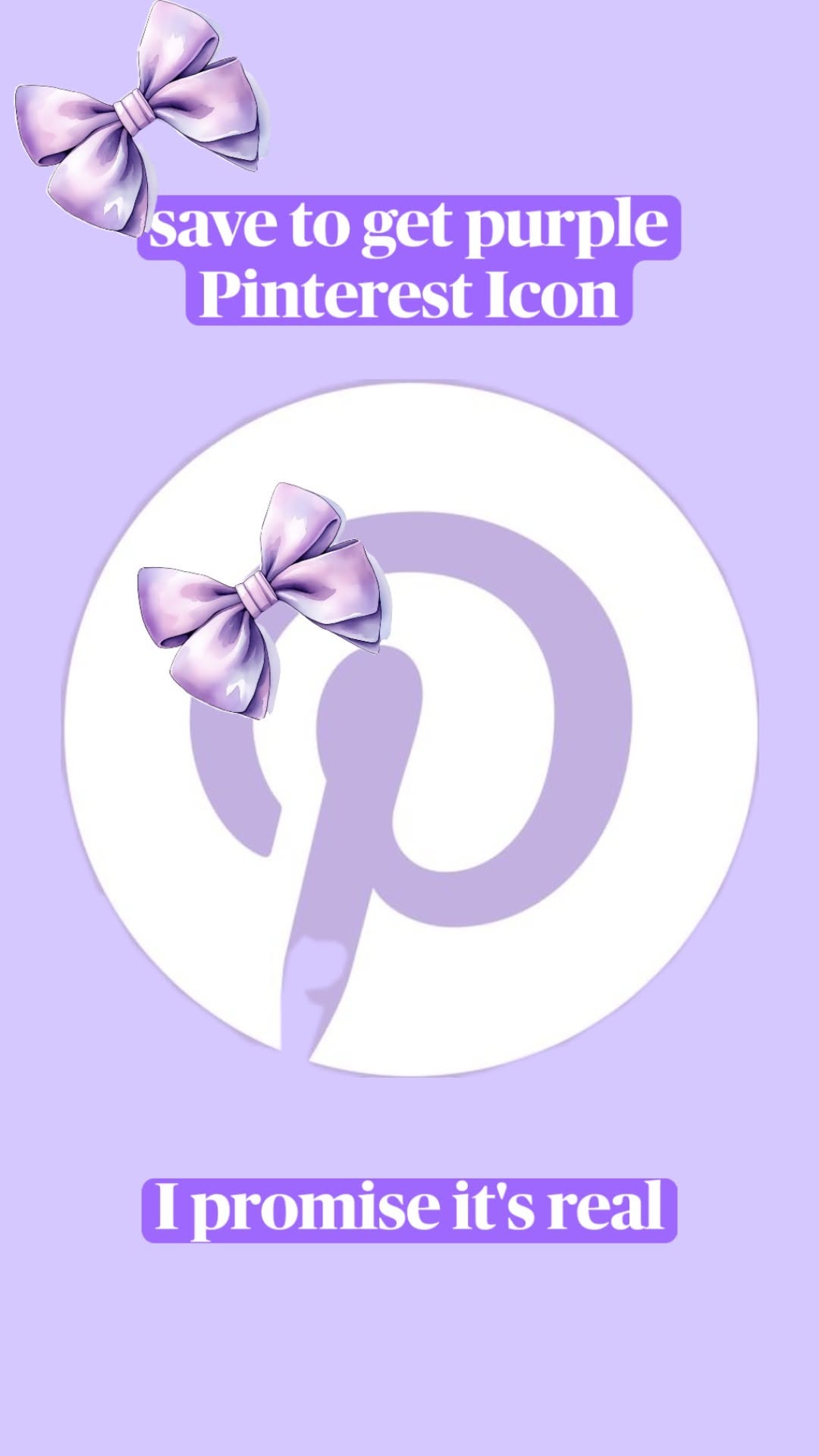
That pin promised something oddly specific: save it and you’d get a purple Pinterest icon. It sounds like a joke, and honestly, Pinterest itself has never shipped a purple app icon. But the promise is real in a different way. Your phone is not stuck with the icons it came with. With a handful of genuinely useful (and mostly free) tools and tricks, you can rebuild your home screen in purple and white, swap Pinterest’s classic red badge for a lilac one, and make the whole thing look like a designer did it. Below are 15 real, working methods and the hidden-gem tools that make them painless.
Table of Contents(Click to Toggle)
- Why Custom Icons Are Suddenly Everywhere
- 15 Tools and Tricks for a Purple Pinterest Icon
- 1. Pinterest (Official App)
- 2. Shortcuts (iOS)
- 3. Nova Launcher
- 4. Icon Themer
- 5. Widgetsmith
- 6. Canva
- 7. Flaticon
- 8. Icons8
- 9. Color Hunt
- 10. Coolors
- 11. Recolor
- 12. Themify
- 13. KWGT Kustom Widget Maker
- 14. Icon Pack Studio
- 15. Aesthetic Kit
- Bonus: PicsArt
- Bonus: Adobe Express
- Bonus: Pixelmator Pro
- Bonus: Launcher iOS 17
- The Quiet Joy of a Home Screen That Matches
Why Custom Icons Are Suddenly Everywhere
App icons used to be a fixed contract: the developer picked a color, and you lived with it. That changed when launchers and shortcut apps started letting ordinary users replace any icon on the home screen with their own image. The result is a quiet customization boom, and purple is one of the most requested palettes because it reads as calm, creative, and slightly unusual without being loud. A purple Pinterest icon in particular has become a small status symbol in aesthetic communities, because Pinterest is one of the few major apps that has never offered an alternate colorway. So people make their own. The tools below range from built-in phone features to niche design utilities most people have never opened, and every one of them can get you closer to that lilac-and-white look.
15 Tools and Tricks for a Purple Pinterest Icon
1. Pinterest : The app you are actually recoloring
What it is: The official Pinterest app for iOS and Android, and the source of the red icon everyone wants to change.
Category: Social and visual discovery app.
Why it stands out: Pinterest has never shipped an official purple icon, which is exactly why the customization community keeps recreating one. The app itself supports dark mode and a reasonably clean home screen, so a recolored icon blends in well. You will need a shortcut or launcher to change it, since the app gives you no built-in option.
Best for: Anyone building a purple home screen who still wants the real Pinterest experience underneath.
2. Shortcuts : Free built-in icon swapping on iPhone
What it is: Apple’s automation app, preinstalled on every modern iPhone.
Category: iOS system utility.
Why it stands out: You can create a shortcut that opens Pinterest, then add it to the home screen with any image you like as the icon. Save a purple Pinterest logo to Photos first, and the whole process takes about two minutes. The trade-off is a brief banner flash when the shortcut launches, and you will have two Pinterest entries unless you hide the original in an App Library folder.
Best for: iPhone users who want a purple icon without installing anything new.
3. Nova Launcher : Full icon control on Android
What it is: A long-running Android home screen replacement.
Category: Android launcher.
Why it stands out: Nova lets you long-press any app icon and swap it for a custom image directly, no shortcut workaround required. It also supports icon packs, so you can apply a purple pack across your entire home screen in one tap. The free version covers basic swaps; some gesture and grid options sit behind the paid tier.
Best for: Android users who want Pinterest and everything else restyled at once.
4. Icon Themer : Shortcut-based icon packs for Android
What it is: An Android app that generates shortcut icons from icon packs.
Category: Android customization tool.
Why it stands out: If your phone’s launcher does not support custom icons natively, Icon Themer builds the shortcuts for you and places them on the home screen. You pick a pack, choose Pinterest, and it handles the rest. The main limitation is that each icon becomes a shortcut, so folders and widgets need a little reorganizing afterward.
Best for: Phones with locked-down launchers that block direct icon edits.
5. Widgetsmith : Icons and widgets in one aesthetic system
What it is: A popular iOS widget and icon customization app.
Category: iOS customization app.
Why it stands out: Widgetsmith is best known for widgets, but its icon tools let you build a matching set so your Pinterest icon does not look like a lone purple square among red and blue ones. You can pull colors from a single palette and apply them consistently. Some icon styles and advanced widgets require the premium subscription.
Best for: iPhone users who want a coordinated purple theme, not just one swapped icon.
6. Canva : Design the icon yourself in minutes
What it is: A browser and mobile design tool with free templates and graphics.
Category: Graphic design platform.
Why it stands out: Canva is the fastest way to make a purple Pinterest icon from scratch. Start a 1024×1024 canvas, drop in a white Pinterest glyph, set the background to your exact purple, and export as PNG with a transparent or solid background. The free tier is enough for this; Pro adds background removal and premium elements.
Best for: Anyone who wants a custom shade of purple rather than an off-the-shelf icon.
7. Flaticon : Millions of icons, including social glyphs
What it is: A large library of downloadable vector and PNG icons.
Category: Icon library.
Why it stands out: Flaticon has clean, minimal social media glyphs that recolor well. Search for the Pinterest mark, download the SVG, and change its fill color to any purple you like in Canva or a vector editor. Free downloads require attribution unless you credit the designer or hold a premium plan, so check the license before publishing anything public.
Best for: People who want a crisp vector base to recolor precisely.
8. Icons8 : Consistent icon sets with recolor tools
What it is: An icon and illustration service with a built-in editor.
Category: Icon and design resource.
Why it stands out: Icons8 lets you change an icon’s color directly on the site before downloading, which removes a whole editing step. It also offers matching sets, so your purple Pinterest icon can share a visual style with your other social icons. Free downloads are limited in size and require a link back; paid plans unlock larger files and no attribution.
Best for: Designers who want a full matching social icon row.
9. Color Hunt : Find the exact purple palette
What it is: A curated collection of four-color palettes.
Category: Color inspiration tool.
Why it stands out: The hardest part of a purple theme is picking purples that do not clash. Color Hunt shows ready-made four-color sets you can filter by mood, so you can grab a lilac, lavender, and deep violet that actually work together. Each palette displays its hex codes, which you then paste into Canva or your launcher’s color picker.
Best for: Anyone who wants a coordinated palette before touching the icon.
10. Coolors : Generate and lock your own purples
What it is: A fast color palette generator.
Category: Color tool.
Why it stands out: Coolors generates palettes with the spacebar and lets you lock colors you like while the rest shuffle. That is ideal if you already know the exact purple you want and need three supporting shades. It also exports palettes as images or code, and the free tier covers unlimited palette creation in the browser.
Best for: People refining one specific purple into a full theme.
11. Recolor : Recolor existing artwork to purple
What it is: A coloring and image recoloring app.
Category: Mobile creative app.
Why it stands out: If you already have a Pinterest logo image but it is the wrong color, Recolor lets you shift the hue without rebuilding it. It is designed for coloring pages, but the paint-bucket and adjustment tools handle simple flat logos well. Complex gradients can get messy, so stick to solid-color source images for the cleanest result.
Best for: Quick recolors on a phone when you do not want to open a desktop editor.
12. Themify : Icon and theme assets in one place
What it is: A design shop offering icon fonts, themes, and add-ons.
Category: Design asset marketplace.
Why it stands out: Themify’s icon fonts and asset packs are aimed at people building full visual systems, which suits anyone making a themed home screen or a matching blog graphic. The icons are scalable and easy to recolor. Most useful packs are paid, so treat it as an upgrade path rather than a free starting point.
Best for: Creators who want the same purple icon look across phone and website.
13. KWGT Kustom Widget Maker : Deep Android widget and icon control
What it is: A powerful Android widget and customization engine.
Category: Android customization app.
Why it stands out: KWGT is the tool Android tinkerers reach for when they want total control. You can build a custom widget that includes a purple Pinterest shortcut, set exact hex colors, and match corner radii across your screen. It has a genuine learning curve and some features need the Pro key, but the results are unmatched.
Best for: Android users who enjoy building their home screen from scratch.
14. Icon Pack Studio : Mass-produce matching icons
What it is: An Android app for generating your own icon pack.
Category: Android icon tool.
Why it stands out: Instead of editing icons one by one, you define a style once, and Icon Pack Studio applies it to every app on your phone. Choose a purple background, white glyphs, and a shape, and your entire home screen updates together. It works best alongside a launcher that accepts third-party icon packs.
Best for: Anyone who wants every icon purple, not just Pinterest.
15. Aesthetic Kit : Ready-made aesthetic icon packs
What it is: An iOS app offering premade aesthetic icon packs and widgets.
Category: iOS customization app.
Why it stands out: If you would rather not design anything, Aesthetic Kit ships themed packs where the colors are already coordinated, and purple sets are common. It walks you through installing the icons via Shortcuts. Many packs and widgets sit behind a subscription, so check the free selection before committing.
Best for: iPhone users who want a finished look with minimal effort.
Bonus: PicsArt : Quick mobile edits and recolors
What it is: A mobile photo and graphic editor.
Category: Creative editing app.
Why it stands out: PicsArt’s color replacement and sticker tools make short work of turning a red Pinterest logo purple on your phone. It is heavier than a dedicated icon tool, but handy if you are already editing photos for a matching feed.
Best for: Editing icons and social graphics in the same session.
Bonus: Adobe Express : Free browser design with brand colors
What it is: Adobe’s lightweight browser and mobile design tool.
Category: Design platform.
Why it stands out: Express handles square icon canvases well and lets you save a brand palette, so your exact purple is one click away every time. The free plan covers basic exports and templates.
Best for: Keeping a consistent purple across many small graphics.
Bonus: Pixelmator Pro : Precise desktop recoloring
What it is: A Mac image editor with strong color tools.
Category: Desktop photo editor.
Why it stands out: Its color adjustment layers let you shift a logo to an exact purple without destroying the original pixels. It is a paid one-time purchase, which makes it a solid pick if you recolor graphics often.
Best for: Mac users who want pixel-perfect control.
Bonus: Launcher iOS 17 : An iPhone-style Android launcher
What it is: An Android launcher that mimics the iOS home screen.
Category: Android launcher.
Why it stands out: It brings iOS-style icon grids to Android and supports custom icon images, so you can get the clean layout and the purple Pinterest icon in one setup. Expect ads in the free version.
Best for: Android users who prefer an iOS-style home screen.
The Quiet Joy of a Home Screen That Matches
None of these tools require design school, and most of them are free. The trick is picking one path and sticking with it: iPhone users will get the fastest result from Shortcuts plus Canva, while Android users can do everything in Nova Launcher or Icon Pack Studio. Start with a palette from Color Hunt or Coolors, build or download one purple Pinterest icon, then decide whether you want the rest of your screen to follow. That last step is what turns a single swapped icon into a theme people actually notice. If you only do one thing, do the palette first. Everything else gets easier once your purples agree with each other. Which tool ended up on your home screen, and did you go lilac, lavender, or deep violet?